
Smartphones aren't the best multitasking devices. Strides have been made in this area, and the Galaxy Z Fold lineup takes great advantage of features like multi-window. Still, the greatest obstacle standing in the way of true mobile multitasking is usually background processing and battery management.
Here's what we mean: Minimize a power-hungry app, such as a mobile game, for a moment, and it will cease working in the background. If it's an online game, it will likely disconnect you from the servers.
This means your game will restart or log you out any time you minimize it and temporarily switch to a different app, for example, a web browser.
Thankfully, there is a way to prevent this behavior by changing the way the app handles battery management.
And, no, pinning an app to Recents won't prevent it from halting when minimized. Pinning an app will only prevent it from disappearing from the Recents list when you press Clear all. It won't affect background processing.
Here's what you actually can do keep your apps running in the background and improve multitasking.
Prevent apps from closing in the background on your Galaxy device
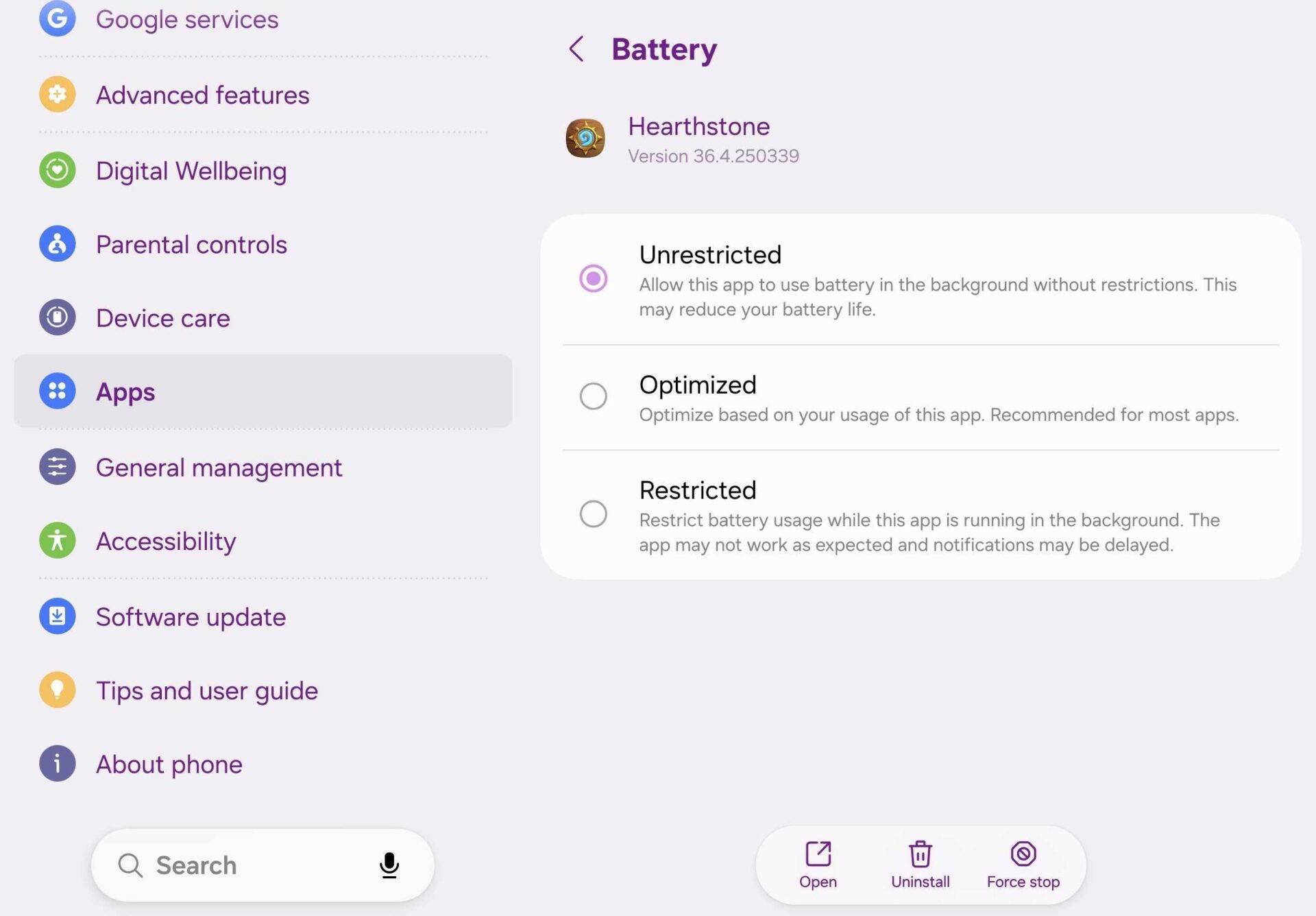
Modern One UI offers three battery management profiles for each app:
- Unrestricted: Allows the app to use battery in the background without restrictions.
- Optimized: Optimize based on your usage of the app.
- Restricted: Restrict battery usage while this app is running in the background.

Optimized is usually the default setting most apps have. However, for more demanding apps and games, this option is not good enough if you want to minimize the app without halting its process.
The setting you want is Unrestricted. When you select it, the app will continue running in the background uninterrupted, even when minimized. Similar to a desktop computer.
To change an app's battery management profile:
- Open Settings > Apps > select the desired app > Battery > Unrestricted.
A word of warning: By preventing One UI/Android from halting background processes as it sees fit, you'll have to be extra careful and manage background processes yourself.
In other words, if you forget a power-hungry app running in the background in Recents while continuing to use your Galaxy phone normally, the battery might drop severely. You'll have to make sure you close the app manually from Recents every time you're done using it.


Post a Comment